How to move your Lightroom Classic catalog to a new computer (transfer or migrate it)
You edited on a laptop and now want to work on a desktop. Or you bought a new computer and want to bring years of work with you. Copying only the photo folders is not enough: your edits are in the catalog (the .lrcat file), not in the photos. Here is how to transfer both so nothing gets lost, on Windows or Mac.
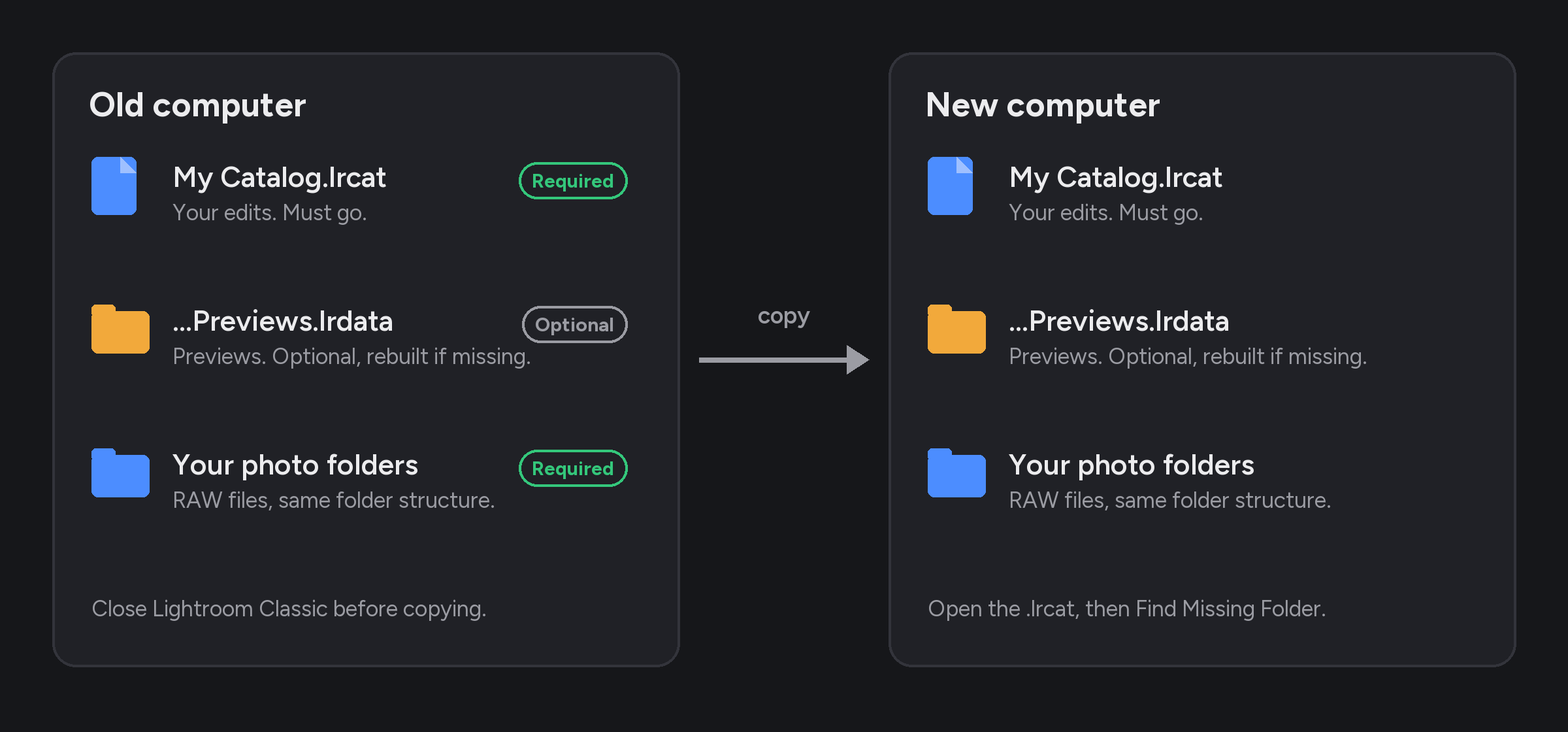
What you need to move
- The catalog file, ending in .lrcat. This is the one that holds every edit, rating, keyword and collection.
- *The .lrcat-data* file next to it*, if you have one. Recent versions of Lightroom Classic keep data that belongs to the catalog there (for example, AI masks). Always move it together with the .lrcat*.
- The previews, ending in Previews.lrdata (and Smart Previews.lrdata if you use them). Optional: Lightroom Classic can rebuild them, it just takes a while. Smart Previews are worth copying if you edit without the original files connected.
- Your photos, the folders the catalog points to. RAW files stay as they are; the catalog only stores where they are.
Not sure where your catalog is? In Lightroom Classic, open Edit → Catalog Settings (on a Mac, Lightroom Classic → Catalog Settings). The General tab shows its location, with a Show button.
Step by step
- Back up the catalog first: File → Back Up Catalog, or let Lightroom Classic do it when you close it.
- Close Lightroom Classic on the old computer. Never copy a catalog while it is open.
- Copy the catalog folder: the .lrcat file, the .lrcat-data file and the .lrdata folders next to it. Ignore files ending in .lock.
- Copy your photos, keeping the same folder structure. If they already live on an external drive, just plug that drive into the new computer.
- Install Lightroom Classic on the new computer, signed in with your Adobe account.
- Open the catalog: double-click the .lrcat file, or use File → Open Catalog in Lightroom Classic.
- Reconnect missing folders, if any. When photos moved to a new place, the Folders panel shows them with a question mark. Right-click the top folder, choose Find Missing Folder, and point it to the new location. Lightroom Classic reconnects every photo inside.
- Make it the default: in Preferences → General, set When starting up use this catalog to the one you just opened.
That's it: your edits, ratings, collections and history are all there.
From Windows to Mac (or Mac to Windows)
The catalog is the same file on both systems, so the steps above work across them. Two things to watch:
- Use an external drive formatted for both (exFAT) to carry the files, or copy over the network.
- Drive letters become volume names. Photos that were on D:\Photos on Windows will live under /Volumes/YourDrive/Photos on a Mac. They will show as missing at first; Find Missing Folder on the top folder fixes them all at once.
If the catalog is newer or older
- Opening a catalog made with an older Lightroom Classic is fine: it offers to upgrade it, and keeps the old one as it was.
- A catalog made with a newer Lightroom Classic won't open in an older version. Update Lightroom Classic on the new computer first.
Tips
- Keep the catalog on a fast internal drive, and the photos wherever you like.
- Don't keep the catalog in a cloud-sync folder (OneDrive, Dropbox, iCloud Drive) or on a network drive. Syncing a catalog while it is open can damage it. Photos can live on a network drive; the catalog should not.
- Many catalogs? Move them all the same way. One catalog per shoot or per year is perfectly fine.
- Moving only part of it: select the folders you want and use File → Export as Catalog, with Export negative files checked. You get a new, smaller catalog with those photos and their edits.
- Same computer, different drive? See how to change the catalog location.
Frequently asked questions
Will I lose my edits if I only copy the photos?
Yes. Edits made in Lightroom Classic live in the catalog, not in the RAW files (unless you also save them to XMP sidecar files). Always move the .lrcat file.
Can I use the same catalog on two computers?
Not at the same time. Keep the catalog and photos on an external drive and plug it into whichever computer you are using, or move the catalog each time you switch.
Do I need to copy the previews?
No. Lightroom Classic rebuilds them, but copying them saves time on a big catalog.
Why this matters for SimplyShot
SimplyShot learns your style from catalogs you have already edited, on your own computer. It needs the .lrcat catalogs and the RAW photos they point to on the computer where you run it: about 2,500 edited photos, from one catalog or several. If your catalogs stayed on another computer, or only the photo folders were copied, it has nothing to learn from yet. Move them with the steps above, open them once in Lightroom Classic to check the photos are connected, and then create your profile.