Natural skin retouching for portraits: a practical guide
Good retouching is invisible. The client should look rested and like themselves on a good day, not like a filter. Here is what natural skin retouching actually means, step by step, and how to get through a whole session of portraits without spending your night on it.
The rules of natural retouching
- Keep the texture. Real skin has pores. Smoothing that erases them is what makes skin look plastic. Even out the color and tone, keep the detail.
- Remove what is temporary, keep what is permanent. A blemish, a scratch or a red spot will be gone next week: remove it. A mole, a scar or freckles are part of the person: keep them, unless the client asks.
- Soften, don't erase. Lines around the eyes and the smile, under-eye circles and shine: reduce them, never remove them completely.
- Retouch the whole person. If the face is perfect and the neck or arms are not, the difference shows.
- Consistency across the session. The same person should look the same in every photo.
The steps, in order
- Blemishes: remove spots and small marks first.
- Skin: even the tone and the transitions, keeping the texture.
- Shine: tone down oily highlights on the forehead, nose and cheeks.
- Under-eyes: lighten dark circles and soften eye bags.
- Eyes and teeth: a touch of light in the eyes; less yellow on teeth.
- Hair and clothing: stray hairs around the head, small creases and stains on plain fabric.
In Photoshop this is spot healing, frequency separation, and dodging and burning, on every photo. It is precise and slow.
Retouching a whole session with SimplyShot
SimplyShot's Retouch does these steps on every face it finds, on your computer:
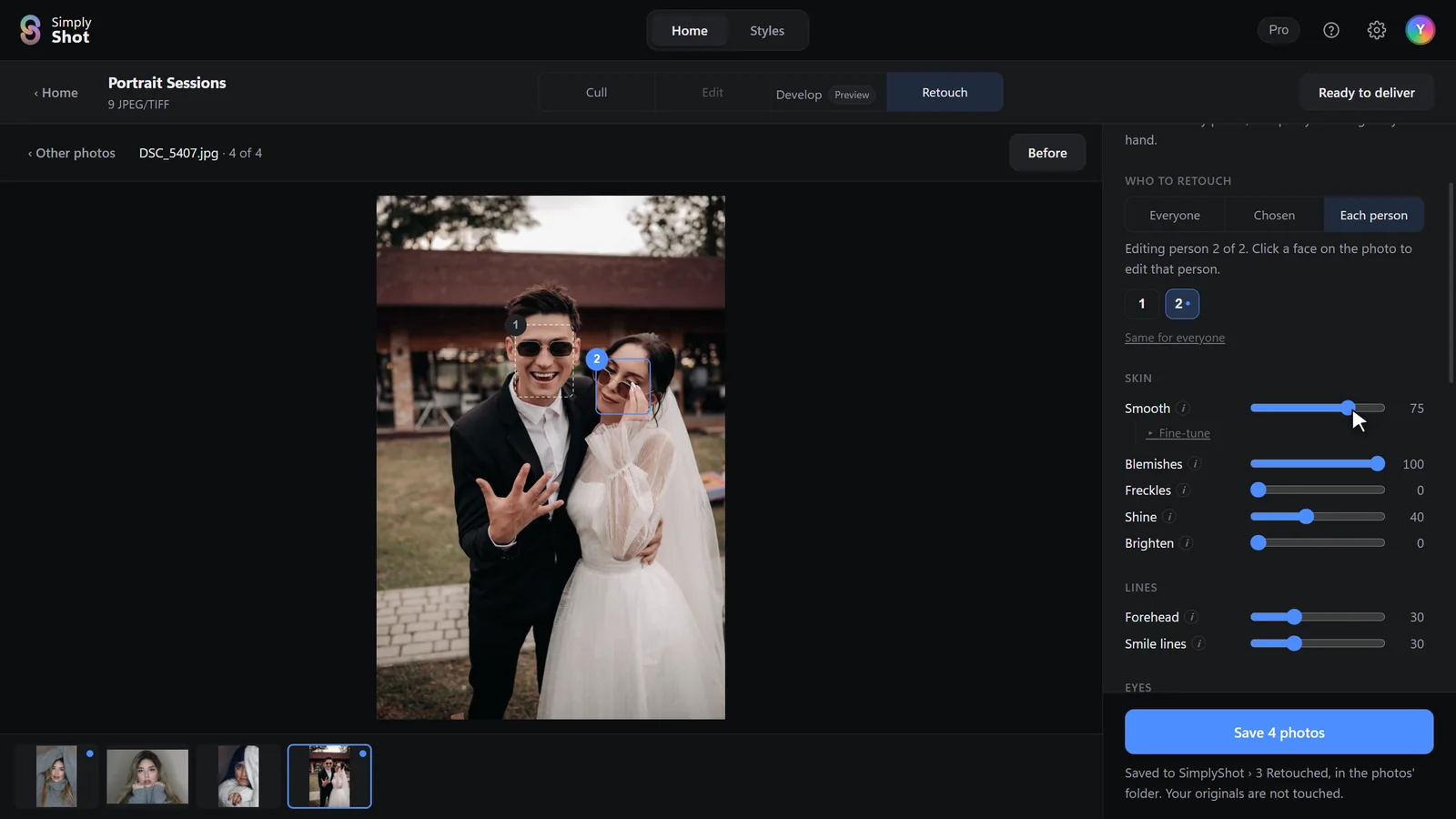
- Smooth evens the skin and keeps its pores, with a Texture fine-tune.
- Blemishes removes small spots and acne; moles and larger marks are kept.
- Shine, Dark circles, Eye bags, Forehead and Smile lines soften instead of erasing.
- Eyes and Teeth get a little light and whitening; nothing changes if the mouth is closed.
- Flyaways and clothing wrinkles on the whole photo.
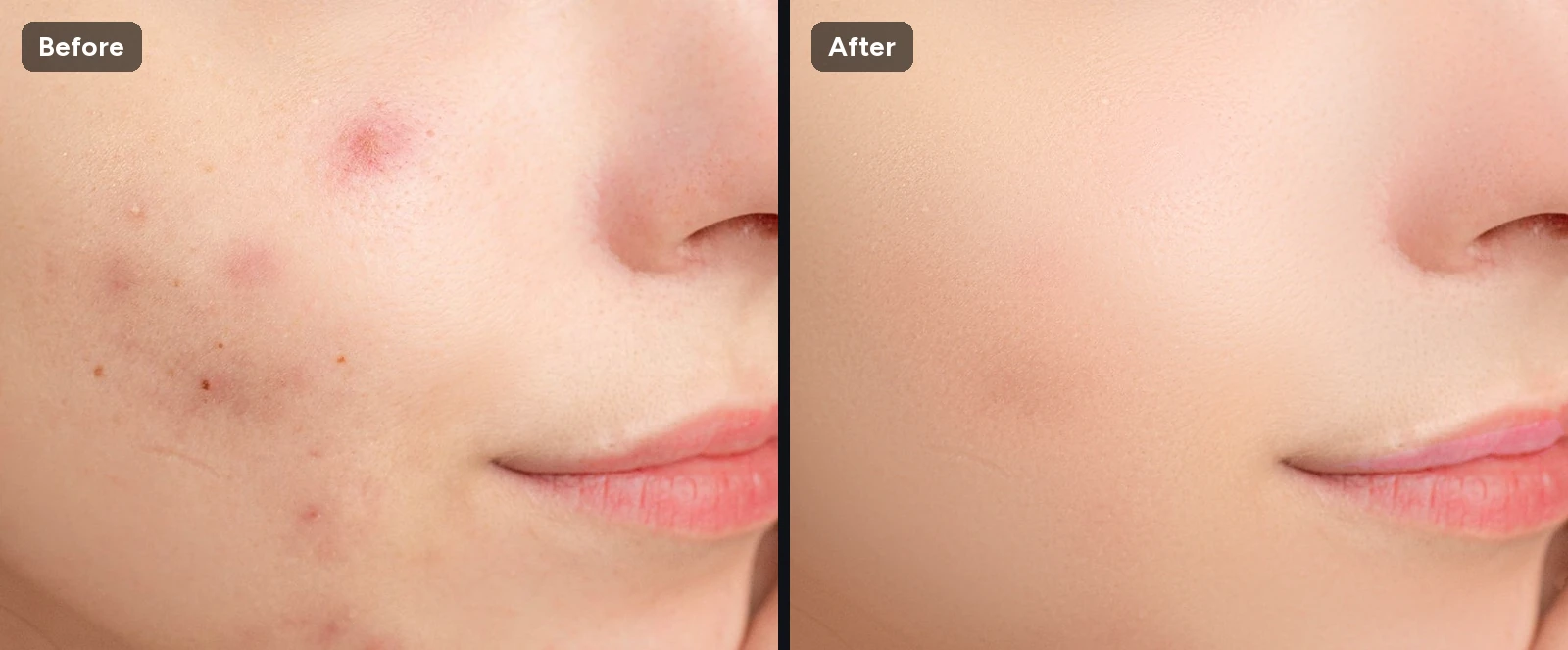
Start from the Natural style for a subtle result, fine-tune any slider, and save your settings as your own style to use on every session.
Different people, different settings
In a couple or family photo, retouch each person their own way: a little more smoothing for one, none for a child.
Frequently asked questions
How do I retouch skin without making it look fake?
Keep the texture: even out color and tone, remove temporary blemishes, and soften (don't erase) lines and shine. Check at 100 % zoom.
Should I remove moles and freckles?
Usually not. They are part of the person. Remove them only if the client asks.
How long should retouching a portrait take?
By hand, a careful skin retouch can take 5 to 20 minutes per photo. With AI retouching, a whole session takes minutes, and you only fine-tune.
Does AI retouching upload my clients' photos?
With SimplyShot, no: Retouch runs on your computer.