How to find blurry photos and closed eyes in a shoot, automatically
The most common rejects in any shoot are the same two: photos that are out of focus or blurred, and photos where someone blinked. Finding them by hand means zooming into thousands of frames. Here is how to spot them faster, and how to let your computer find them for you.
Why blurry photos are hard to spot
At the size of a thumbnail, almost everything looks sharp. Missed focus and camera shake only show at 100 %, on the eyes. And not all blur is bad: a soft background is on purpose, a moving hand is fine. What matters is the eyes of the people in the photo.
By hand, in Lightroom Classic
- Use the Loupe (E) at a zoom that shows the eyes clearly, and keep it there as you move with the arrows.
- For blinks, Compare (C) on the faces of group photos, one by one.
It works, but on a 2,000-photo wedding it takes hours.
Automatically, with SimplyShot's Cull
Cull checks every photo of the shoot on your computer:
- Blur: sharpness is measured on the eyes, so a blurred background on purpose is fine. Choose how strict: Very blurry only, or Slightly soft too.
- Closed eyes: on every face big enough to matter in the photo.
- Exposure: blown highlights or crushed shadows, to review or to leave out.
Every photo it leaves out says why, so you can check it in a second.
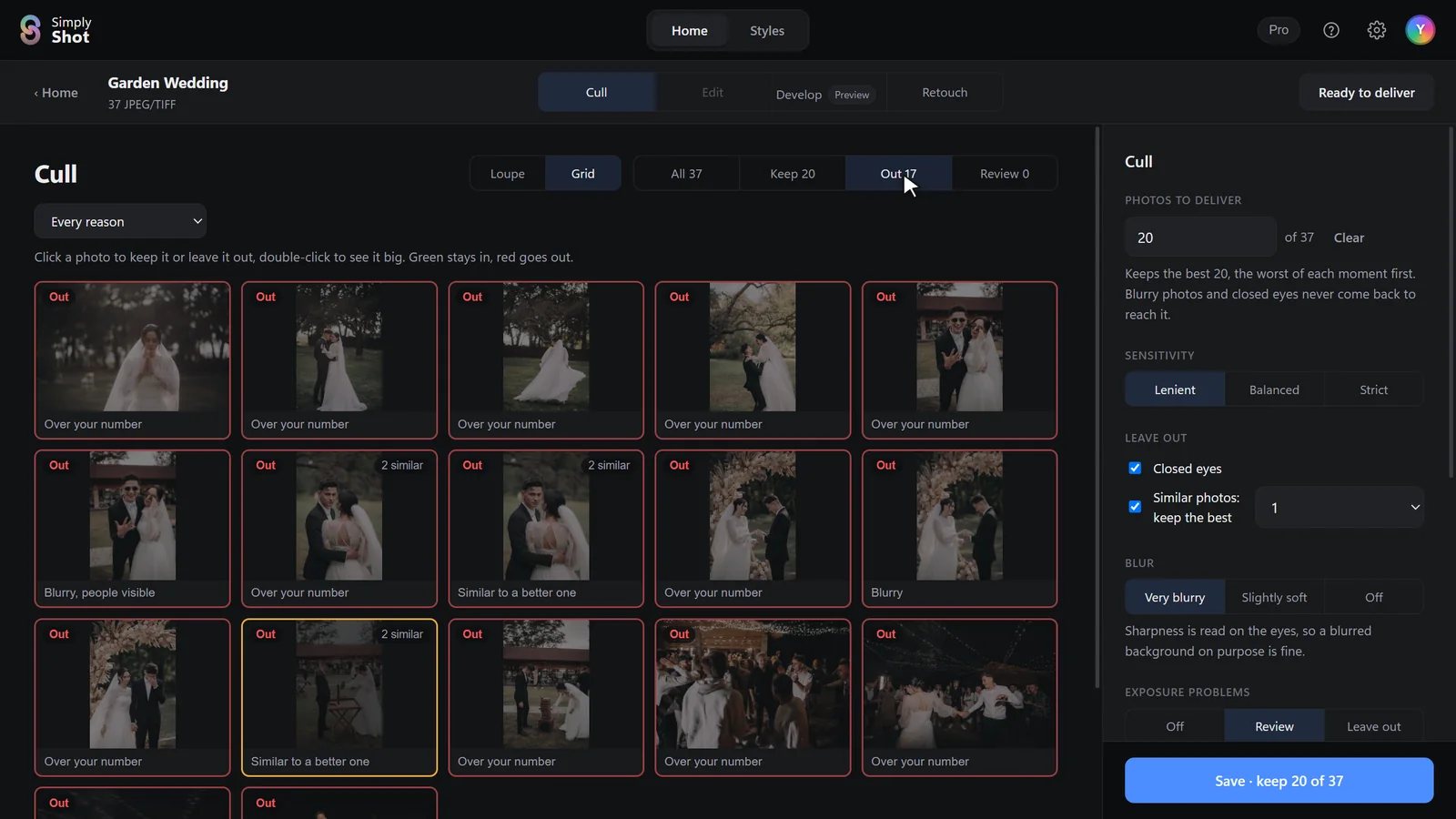
Filter by reason (Blurry, Closed eyes, Similar, Exposure) to review one kind of problem at a time.
Frequently asked questions
How can I find blurry photos in Lightroom Classic?
Check the eyes at 100 % in the Loupe, one by one, and reject with X. To have them flagged for you, use a culling tool such as SimplyShot's Cull.
Can software detect closed eyes?
Yes. SimplyShot's Cull detects closed eyes on every face that matters in the photo and leaves those photos out.
Will it reject photos with a blurred background?
No. Sharpness is read on the eyes, so shallow depth of field is fine.