AI photo culling that runs on your computer
You shot 2,000 photos. You will deliver 400. Getting from one number to the other is hours of clicking through near-identical frames. Cull does the first pass for you in seconds: it checks every photo for focus, closed eyes, repeats and exposure, keeps the best of each moment, and explains every photo it left out. No training, nothing uploaded.
How it works
- Open the folder of your shoot. RAW, JPEG or TIFF, straight from the card or your drive.
- Say how many photos you want to deliver, or leave it empty to keep every good one. Choose how strict to be: Lenient, Balanced or Strict.
- Press Cull. It looks at every photo on your computer. A wedding takes minutes, not hours.
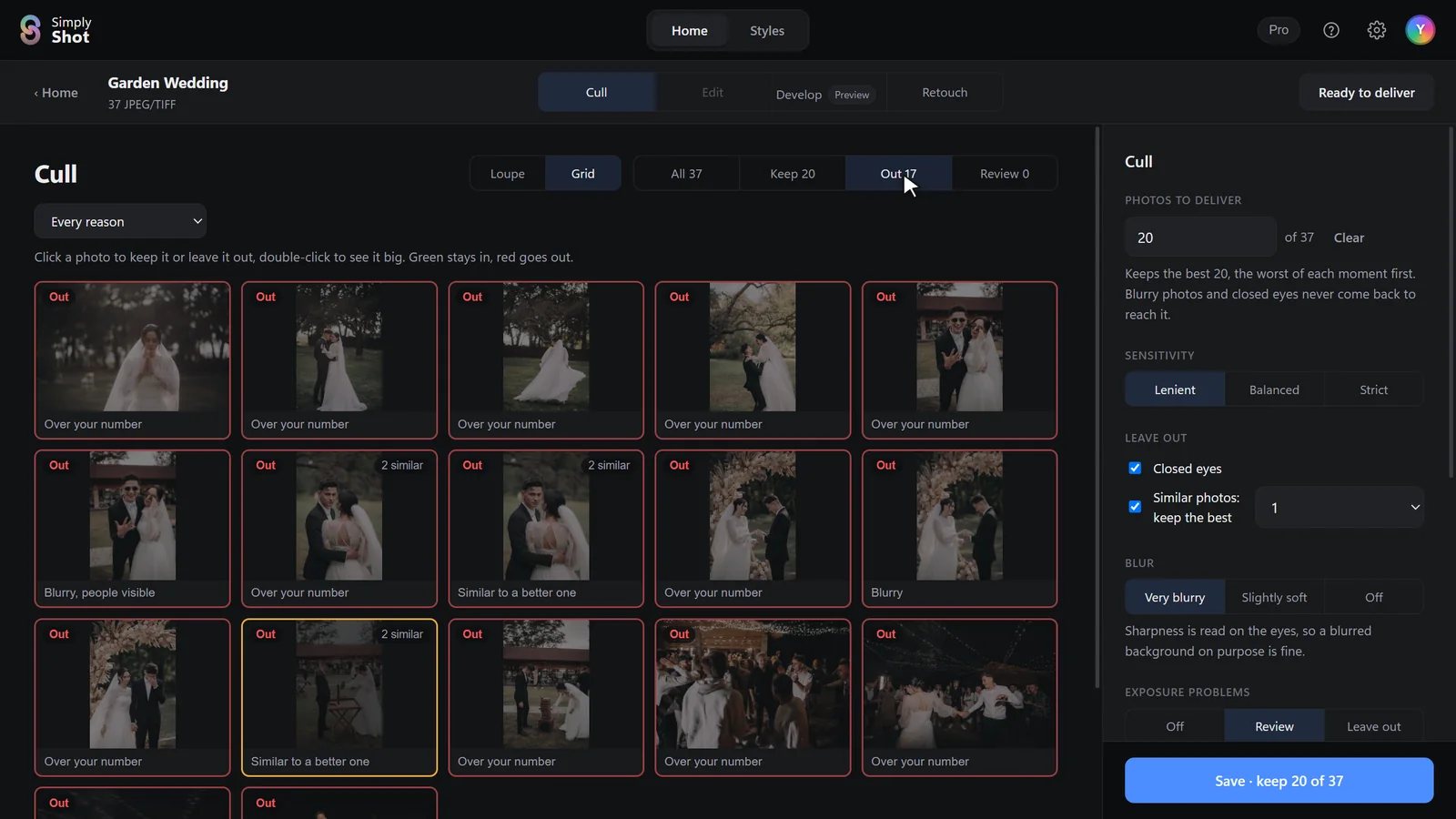
- Review. Every photo says why it is in or out. Change anything with one key.
- Save. RAW photos get stars and a color label in their .xmp, which Lightroom Classic reads when you import. RAW files never move. JPEG and TIFF are never changed: the ones left out move to SimplyShot › 1 Not selected, inside the shoot's folder, and Bring them back returns them.
- Not happy with it? Do it again. Before saving, Start over discards the cull. After saving, Undo this cull puts stars, labels and photos back exactly as they were, even days later, and your edits are kept.
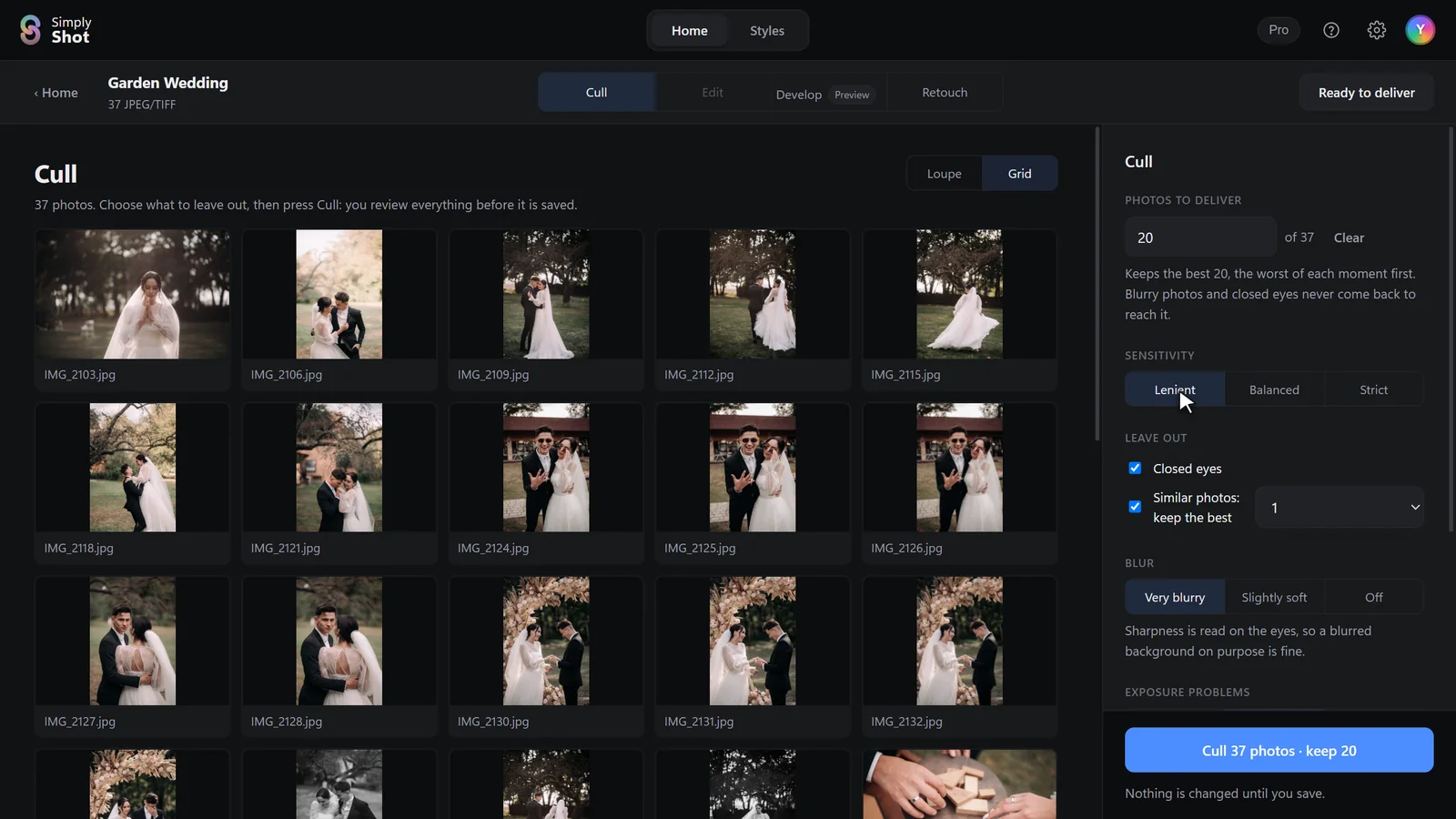
Two ways to cull
- AI selects. Cull leaves out the blurry photos, closed eyes and repeats, rates the rest, and you review.
- You select. Cull only groups similar photos and scores each one for focus and eyes; you pick with P and X. Nothing is left out for you.
Either way, a blurry photo or closed eyes only go out when there is a better photo of that moment. The only shot of a moment, or a series blurred on purpose, stays in for you to review: creative photos are yours to judge.
What it looks at
- Focus on the eyes. Sharpness is read where it matters, so a blurred background on purpose is fine.
- Closed eyes, on every face that matters in the photo. Someone looking down (at a baby, a belly, a ring) or laughing with narrowed eyes is not a blink: those photos stay in, marked for review.
- Similar shots. Bursts and repeats are grouped, and it keeps the best one (or the best two or three, if you like).
- Exposure. Blown highlights or crushed shadows can be flagged for review or left out. High-key and backlight are often on purpose, so you decide.
- Smiles. Among similar photos, it can prefer the one where people smile.
- Quality stars. Optionally, it rates the keepers from two to five stars by quality.
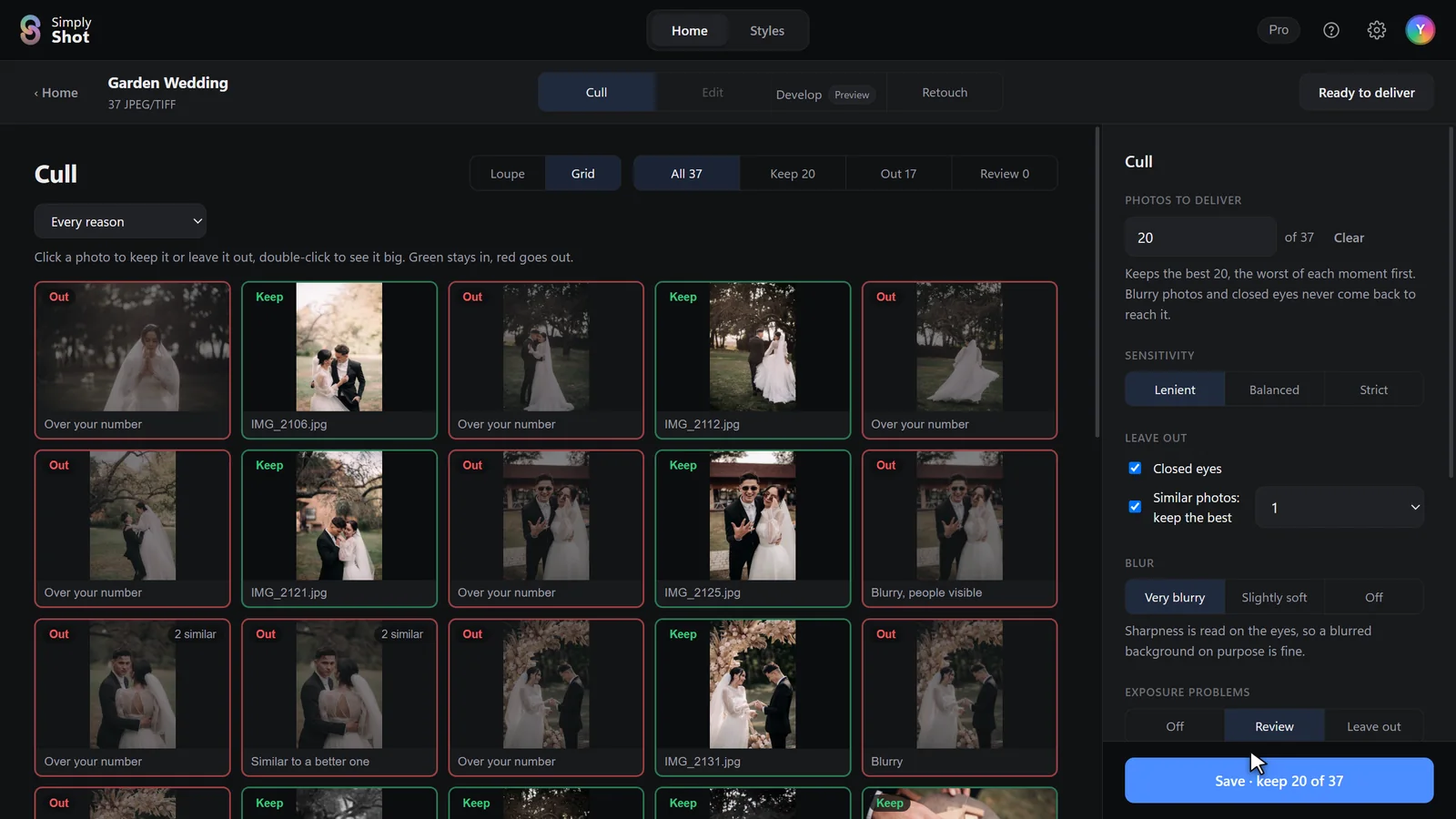
Your number of photos, the best of each moment
Type how many photos you want to deliver before you start. Cull keeps the best of each moment of the day, instead of the 20 sharpest photos of the first dance. When it has to cut, it cuts repeats first: of the two most similar photos still in, the weaker one goes. A photo with no other like it stays while there is anything repeated left, so no scene disappears. Blurry photos and closed eyes never come back just to reach the number. Change the number afterwards and it recalculates at once.
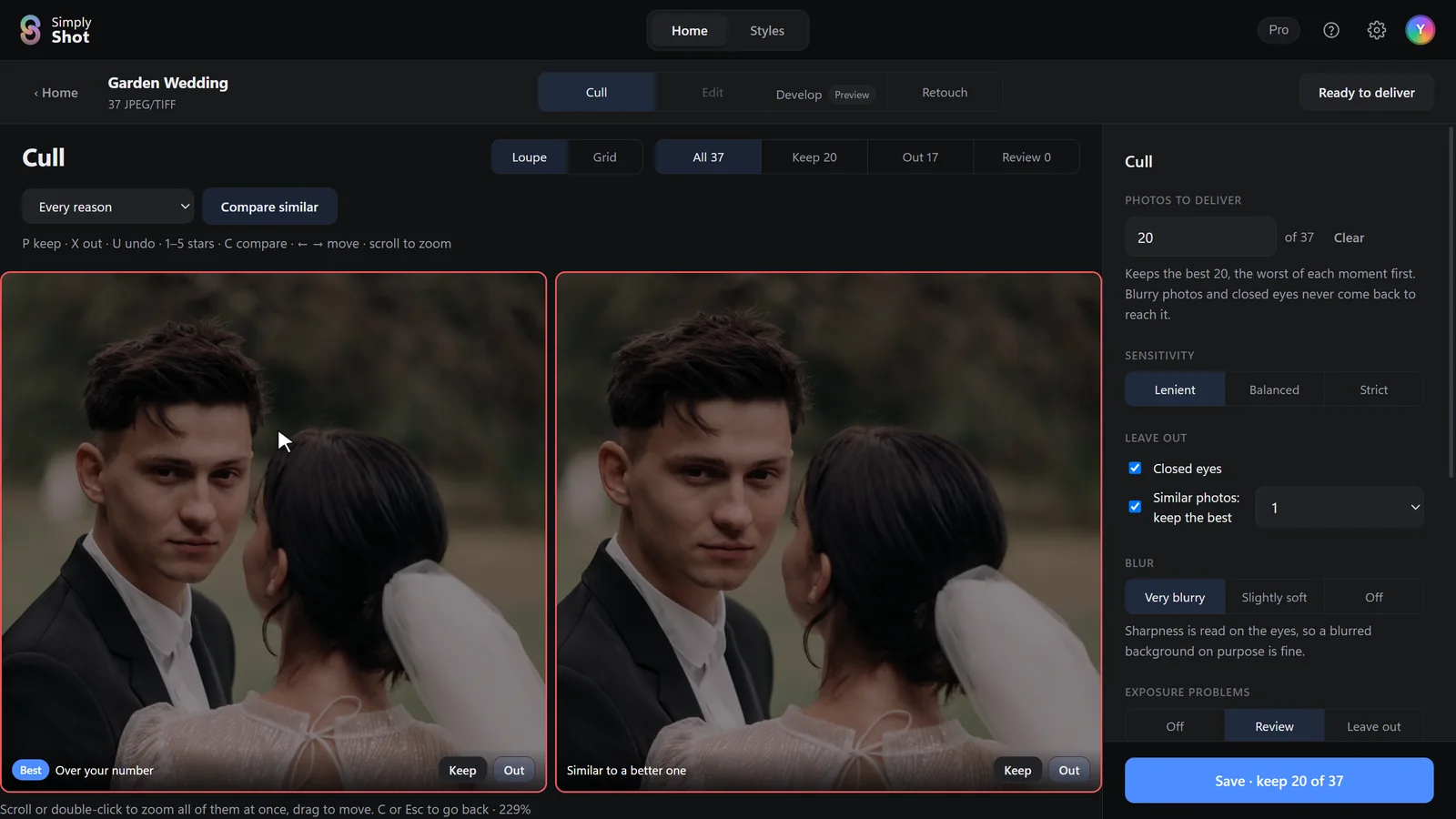
Compare similar shots side by side
Press C to see a group of similar photos side by side. Scroll to zoom: they all zoom together, on the same spot, so you can see which eyes are sharp. Keep or leave out each one right there.
Built like the tools you know
- P keep, X leave out, U undo, 1–5 stars, arrows to move, as in Lightroom.
- Loupe or grid, filters by reason (blurry, closed eyes, similar, over your number, exposure).
- Nothing is changed until you save.
Frequently asked questions
Does Cull need to learn from my past culls?
No. It works from the first shoot, with no training. Your style profile is only for editing.
Does it upload my photos?
No. Culling runs on your computer. Only your account is checked online.
Does it work with RAW files?
Yes: RAW, JPEG and TIFF. For RAW files your picks are saved as stars and a color label in the .xmp sidecar, and Lightroom Classic reads them when you import.
Can I cull to an exact number of photos?
Yes. Type the number in Photos to deliver and it cuts repeats first, the weaker of the two most similar photos each time, until it reaches it. Every scene keeps its best photo.
Can I change its decisions?
Always. Keep or leave out any photo with one click or one key. Nothing is saved until you press Save.
Start your free trial Download
Everything else it does
- Edit in your style · Learns your style from your catalogs and edits whole shoots.
- Develop · Sliders, AI remove, black and white, and export. In preview.
- Retouch · Skin, eyes, teeth, hair and clothing, person by person.