How to remove distractions from photos (without Photoshop)
A chair behind the bride. An exit sign above the altar. A stranger walking through the background. Small distractions pull the eye away from the people in the photo, and removing them used to mean a trip to Photoshop. Today you can do it right where you edit.
What is worth removing
- Bright objects at the edges: the eye goes to the brightest spot. A white chair or a sign in a dark background is the first thing people see.
- Things that cut through people: a lamp post growing out of a head, a branch across a face.
- Signs, cables, outlets, trash: anything that dates the photo or looks untidy.
- Leave context: not everything in the background is a distraction. A venue is part of the story.
In Lightroom Classic
Lightroom Classic has a Remove tool (press Q) with several modes: generative remove (which uses Adobe's cloud), content-aware remove, heal and clone. Paint over the distraction and it is filled in from the surroundings. Generative remove sends the area to Adobe's cloud to compute it.
In SimplyShot, on your computer
SimplyShot's Develop has a Remove brush that runs entirely on your computer:
- Open the photo in Develop and choose Remove.
- Adjust the brush size and paint over the distraction. Paint a bit beyond its edges.
- In a few seconds it is filled in from what is around it. Undo any stroke if you don't like it.
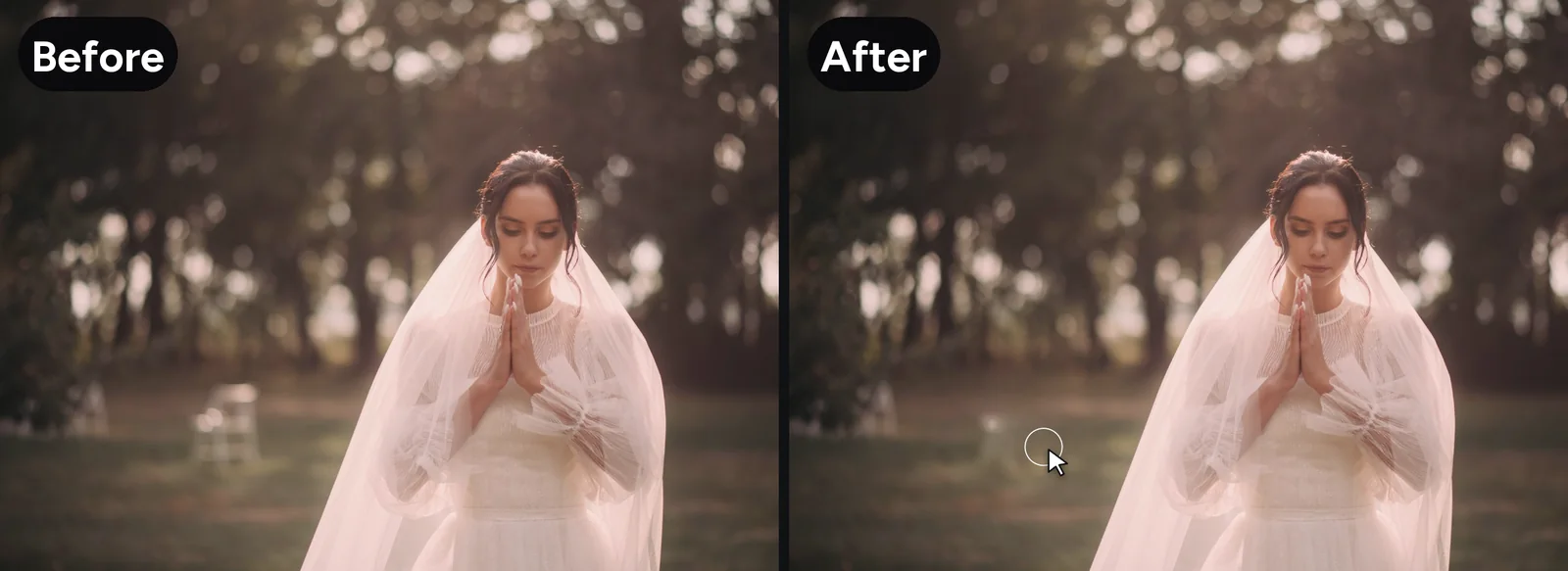
Your original file is never changed: the strokes are kept with your edits, and exports go to their own folder.
Tips for clean results
- One object per stroke. Several small strokes look better than one big one.
- Cover the shadow too. An object removed with its shadow left behind looks strange.
- Avoid faces and hands. Fills are best on backgrounds: grass, walls, sky, floors, foliage.
- Check at 100 %. Zoom in on the filled area before exporting.
Frequently asked questions
Can I remove objects from photos without Photoshop?
Yes. Lightroom Classic has a Remove tool, and SimplyShot's Develop has a Remove brush that runs on your computer.
Does removing objects upload my photo?
In SimplyShot, no: Remove runs on your computer. In Lightroom Classic, generative remove uses Adobe's cloud.
Does it work on RAW files?
Yes. In SimplyShot, Remove works on RAW, JPEG and TIFF photos, and the change is kept with your edits, not written into the original file.